Scientific Calculator Online – Free Advanced Math Calculator
How to use our Scientific Calculator
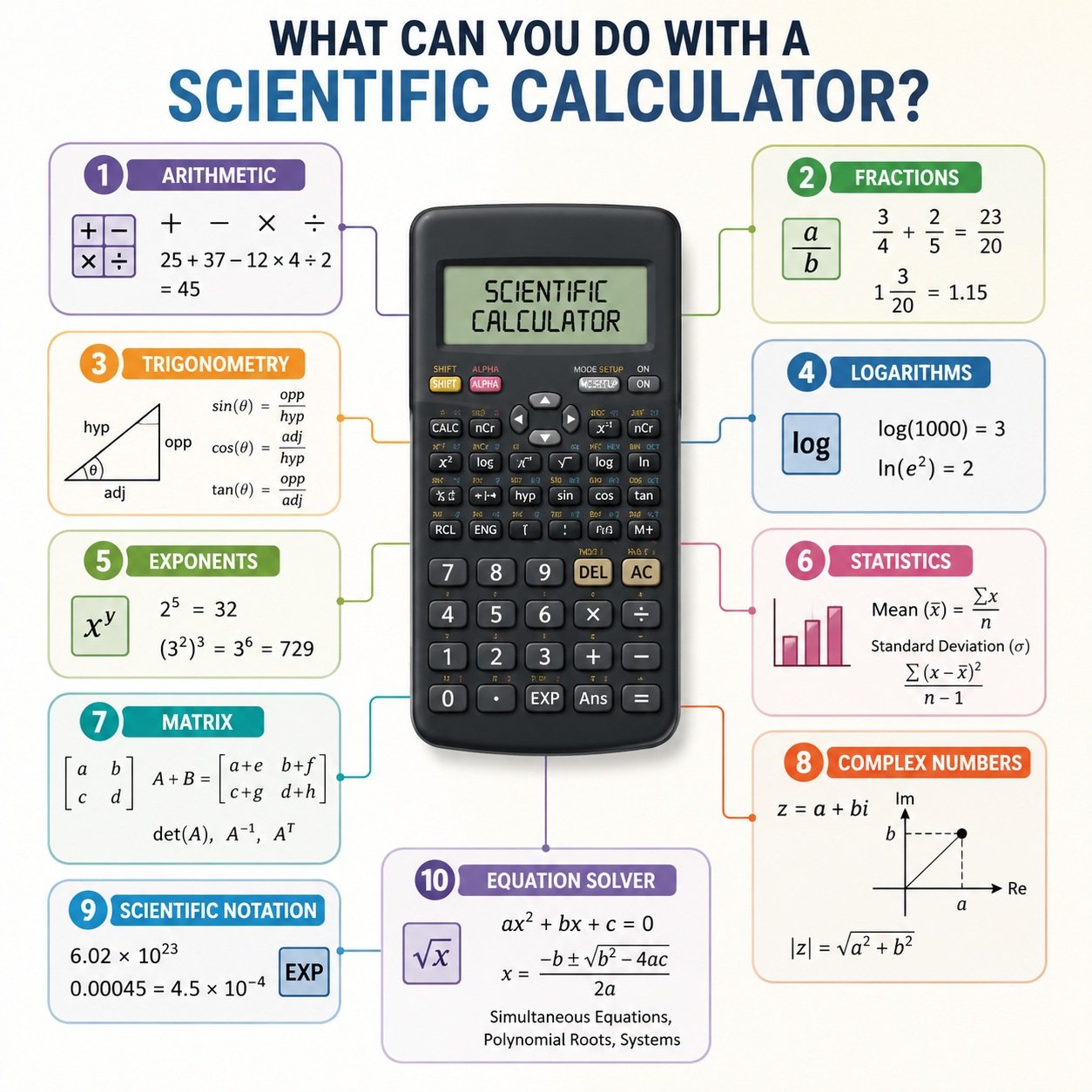
Understanding our scientific calculator functions helps you solve math, science, engineering, finance, and statistics problems faster and more accurately. Whether you’re using an online scientific calculator, a Casio scientific calculator, or a Texas Instruments scientific calculator, most models include the same core functions. Le us explain you what each button does, when to use it, and will provide practical examples wherever necessary.Display & Memory Section
Display Area
The dual-line display shows your current input and calculation history simultaneously. The history line displays previous operations, while the main input line shows the current number or expression being entered.
Example: When calculating 25 + 37, the history shows 25 + 37 = and the result 62 appears in the main display.
Memory Functions (MC, MR, M+, M−, MS)
These buttons store and recall numbers for multi-step calculations.
| Button | Function | Example |
| MS (Memory Store) | Saves current number to memory | Enter 50, press MS → memory stores 50 |
| MR (Memory Recall) | Recalls stored number | Press MR → inserts 50 into current calculation |
| M+ (Memory Add) | Adds current number to memory | Memory 50 + current 25 → press M+ → memory becomes 75 |
| M− (Memory Subtract) | Subtracts current number from memory | Memory 75 – current 10 → press M− → memory becomes 65 |
| MC (Memory Clear) | Clears all memory | Press MC → memory resets to 0 |
Basic Operations Section
Number Input (0–9, ., +/−)
Enter numerical values, decimal points, and toggle between positive and negative numbers.| Button | Function | Example |
| 0–9 | Digit input |
Press 3, 5 → 35
|
| . (Decimal) | Adds decimal point |
3.14 enters pi approximation
|
| +/− (Sign Change) | Toggles between positive/negative |
25 → press +/− → -25
|
Arithmetic Operators (+, −, ×, ÷, =)
Perform basic mathematical operations.| Button | Function | Example |
| + | Addition | 15 + 27 = 42 |
| − | Subtraction |
100 − 37 = 63
|
| × | Multiplication | 12 × 8 = 96 |
| ÷ | Division | 144 ÷ 12 = 12 |
| = | Execute calculation |
Completes the current operation
|
Clear & Edit Functions (AC, C, CE, DEL)
| Button | Function | Example |
| AC (All Clear) | Clears entire calculation and history | Removes everything, resets to 0 |
| CE (Clear Entry) | Clears only the current input | Enter 123 → press CE → clears to 0 (history remains) |
| DEL (Delete) | Removes last digit/character | Enter 456 → press DEL → 45 |
| ENTER/EXE | Executes current calculation | Alternative to = button |
Usage Example: If you type 123 + 45 and notice 45 should be 54, press DEL twice to get 123 +, then type 54.
Parentheses & Grouping ( )
Group expressions to control calculation order.
| Button | Function | Example |
| ( | Open parenthesis | (15 + 7) × 3 |
| ) | Close parenthesis | (15 + 7) × 3 = 66 |
Example: Without parentheses: 15 + 7 × 3 = 36 (multiplication first). With parentheses: (15 + 7) × 3 = 66.
Percentage, Power and root Functions
Percentage (%)
Calculates percentages, discounts, and proportional values.
| Function | Example |
| % | 200 + 10% = 220 (adds 10% of 200) |
| % | 200 − 15% = 170 (subtracts 15%) |
| % | 15% × 200 = 30 (15% of 200) |
Power Functions (x², x³, xʸ)
| Button | Function | Example |
| x² | Square | 5² = 25 |
| x³ | Cube | 4³ = 64 |
| xʸ | Power (any exponent) | 2⁵ = 32 (enter 2, press xʸ, enter 5, press =) |
Roots (√, ³√, ⁿ√)
| Button | Function | Example |
| √ | Square root | √64 = 8 |
| ³√ | Cube root | ³√27 = 3 |
| ⁿ√ | Nth root | ⁴√16 = 2 (4th root of 16) |
Example: To calculate the cube root of 125, enter 125, press ³√ → 5.
Reciprocal & Absolute Value
| Button | Function | Example |
| 1/x | Reciprocal (inverse) | 1/4 = 0.25 |
| abs | Absolute value | abs(-7) = 7 |
Factorial & Combinatorics
Factorial (x!)
Calculates the factorial of a non-negative integer.
| Function | Example |
| x! | 5! = 5×4×3×2×1 = 120 |
Use Case: Probability calculations
Permutations (nPr) & Combinations (nCr)
| Button | Function | Example |
| nPr | Permutations (order matters) | 5P3 = 5!/(5-3)! = 60 |
| nCr | Combinations (order doesn’t matter) | 5C3 = 5!/(3!×2!) = 10 |
Example: Calculate how many ways to choose 3 winners from 5 participants: 5, press nCr, 3, press = → 10.
Logarithms & Exponentials
Logarithmic Functions (log, ln)
| Button | Function | Example |
| log | Base-10 logarithm | log(100) = 2 |
| ln | Natural logarithm (base e) | ln(e) = 1 |
| eˣ | Exponential (e raised to power) | e² = 7.389 |
| 10ˣ | Power of 10 | 10³ = 1000 |
Use Case: In chemistry for pH calculations (pH = -log[H+]), or in finance for compound interest calculations.
Trigonometric Functions
Basic Trig (sin, cos, tan)
| Button | Function | Example |
| sin | Sine (in current angle mode) | sin(30°) = 0.5 |
| cos | Cosine |
cos(60°) = 0.5
|
| tan | Tangent | tan(45°) = 1 |
Inverse Trig (sin⁻¹, cos⁻¹, tan⁻¹)
| Button | Function | Example |
| sin⁻¹ | Arc sine |
sin⁻¹(0.5) = 30°
|
| cos⁻¹ | Arc cosine |
cos⁻¹(0.5) = 60°
|
| tan⁻¹ | Arc tangent | tan⁻¹(1) = 45° |
Hyperbolic Functions (sinh, cosh, tanh)
| Button | Function | Example |
| sinh | Hyperbolic sine |
sinh(1) = 1.175
|
| cosh | Hyperbolic cosine |
cosh(1) = 1.543
|
| tanh | Hyperbolic tangent |
tanh(1) = 0.762
|
Angle Modes (DEG, RAD, GRAD)
| Button | Function | Example |
| DEG | Degrees | sin(30) = 0.5 |
| RAD | Radians | sin(π/6) = 0.5 |
| GRAD | Gradians |
sin(33.333) = 0.5
|
Constants (π, e)
| Button | Value | Example |
| π | 3.141592654 |
Area of circle: π × 5² = 78.54
|
| e | 2.718281828 |
Euler’s number for natural growth
|
Scientific Notation (EXP)
| Button | Function | Example |
| EXP | Enter powers of 10 |
5 × 10⁶ = 5 EXP 6
|
Random Functions (Ran#, RanInt)
| Button | Function | Example |
| Ran# | Random decimal between 0 and 1 | Ran# → 0.437 |
| RanInt | Random integer in range | RanInt(1,10) → 7 |
Use Case: Generate random numbers for simulations, gaming, or statistical sampling.
Statistics Functions (Σ+, n, x̄, σ, Σx)
| Button | Function | Example |
| Σ+ | Add data point to statistical set |
Enter 5, press Σ+
|
| n | Number of data points | Shows count |
| x̄ | Mean (average) |
Average of entered data
|
| σ | Population standard deviation |
Measures data spread
|
| Σx | Sum of all data points |
Total of all entered values
|
Complex Numbers (i, Re, Im, Arg)
| Button | Function | Example |
| i | Imaginary unit | 3 + 2i |
| Re | Real part | Re(3+2i) = 3 |
| Im | Imaginary part | Im(3+2i) = 2 |
| Arg | Argument (angle) |
Arg(1+i) = 45°
|
Matrices & Vectors
| Button | Function | Example |
| Matrix | Matrix calculations |
Addition, multiplication, inverse
|
| Vector | Vector operations |
Dot product, cross product
|
Calculus (d/dx, ∫)
| Button | Function | Example |
| d/dx | Numerical differentiation |
Find slope at a point
|
| ∫ | Numerical integration |
Calculate area under curve
|
Advanced Functions (SOLVE, TABLE)
| Button | Function | Example |
| SOLVE | Equation solver |
2x + 5 = 13 → solve for x = 4
|
| TABLE | Generate function table |
y = x² for x = 0,1,2,3…
|
Navigation & Settings
| Button | Function | Example |
| SHIFT | Access secondary functions |
SHIFT + sin = sin⁻¹
|
| ALPHA | Enter variables (A–F, X, Y, M) |
Store values in variables
|
| ▲ ▼ ◄ ► | Navigate menus and edit |
Move cursor in expressions
|
| MODE/SETUP | Change calculator settings |
Switch between formats
|
How to Find Antilog in Scientific Calculator
The antilog is the inverse of a logarithm. Here’s how to calculate it:
| Type of Antilog | Button to Use | Example | Result |
| Common Antilog (base 10) | 10ˣ | log(100) = 2 → antilog: 10ˣ(2) | 100 |
| Natural Antilog (base e) | eˣ | ln(20) ≈ 2.9957 → antilog: eˣ(2.9957) | 20 |
| Any Base Antilog | xʸ | log₂(8) = 3 → antilog: 2 xʸ 3 | 8 |
Example 1: Common Antilog (base 10)
To find the antilog of 2.5 (i.e., 10²·⁵):
- Step 1: Enter 2.5
- Step 2: Press 10ˣ
- Step 3: Result = 316.22776
Use Case: pH calculations in chemistry (if pH = 7.5, [H⁺] = 10⁻⁷·⁵).
Example 2: Natural Antilog (base e)
To find the antilog of 1.6094 (i.e., e¹·⁶⁰⁹⁴):
- Step 1: Enter 1.6094
- Step 2: Press eˣ
- Step 3: Result = 5.000 (approximately 5)
Use Case: Population growth models, continuous compound interest.
Example 3: Custom Base Antilog
To find the antilog of 3 in base 2 (2³):
- Step 1: Enter 2
- Step 2: Press xʸ
- Step 3: Enter 3
- Step 4: Press =
- Step 5: Result = 8
Use Case: Computer science calculations (binary), signal processing.
Antilog vs. Log
| Function | Button | Example | Result |
| Logarithm (base 10) | log | 100 log | 2 |
| Antilog (base 10) | 10ˣ | 2 10ˣ | 100 |
| Natural Log | ln | e ln | 1 |
| Natural Antilog | eˣ | 1 eˣ | 2.71828 |
Practical Applications of Antilog
| Field | Use Case | Calculation |
| Chemistry | pH to [H⁺] concentration | [H⁺] = 10^(-pH) → use 10ˣ with negative pH |
| Finance | Compound interest calculations | Future value = Present × e^(rt) → use eˣ |
| Biology | Population growth | Population = Initial × e^(growth rate × time) |
| Earthquake Measurement | Richter scale to energy | Energy = 10^(1.5 × magnitude) → use 10ˣ |
| Sound Engineering | Decibels to pressure ratio | Ratio = 10^(dB/20) → use 10ˣ |
| Computer Science | Binary to decimal | 2^bit_position → use xʸ |
Understanding the Trigonometric Circle Diagram
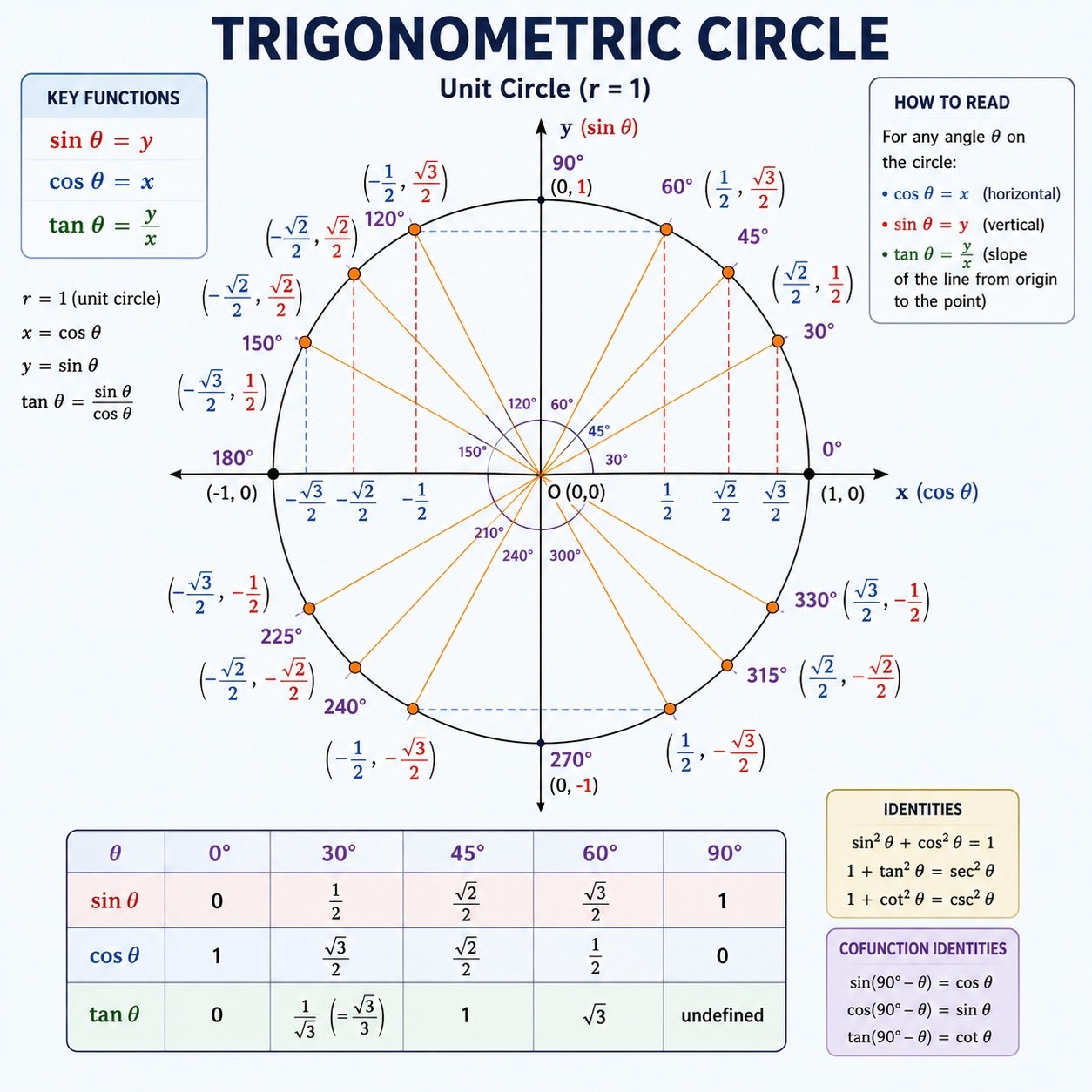
The Trigonometric Circle Diagram, also known as the Unit Circle, is one of the most important tools in mathematics, physics, engineering, and computer science. It visually explains how the sine (sin), cosine (cos), and tangent (tan) functions relate to angles around a circle with a radius of 1.
The horizontal axis represents the cosine (x-coordinate), while the vertical axis represents the sine (y-coordinate). The tangent value is calculated by dividing the sine value by the cosine value (tan θ = sin θ ÷ cos θ). As you move around the circle, these values change depending on the angle.
The chart highlights the five most commonly used angles—0°, 30°, 45°, 60°, and 90° – along with their exact sine, cosine, and tangent values. These angles are frequently used in algebra, geometry, trigonometry, calculus, engineering, physics, navigation, architecture, and computer graphics.
The unit circle also helps you quickly identify the coordinates of each angle, convert between degrees and radians, understand the four quadrants, and solve right triangle problems without memorizing every formula. Learning this diagram makes trigonometric calculations on a scientific calculator faster and more accurate.
Common Trigonometric Values
| Angle | sin θ | cos θ | tan θ |
| 0° | 0 | 1 | 0 |
| 30° | 1/2 | √3/2 | √3/3 |
| 45° | √2/2 | √2/2 | 1 |
| 60° | √3/2 | 1/2 | √3 |
| 90° | 1 | 0 | Undefined |
Tip: Before using the sin, cos, or tan buttons on your scientific calculator, always verify whether it is set to Degree (DEG) or Radian (RAD) mode. Using the wrong angle mode is one of the most common causes of incorrect trigonometric results.
Permutation vs Combination Comparison
Permutations and combinations are two fundamental counting techniques used in mathematics, probability, statistics, data science, and computer programming. The main difference is whether the order of selection matters. Use the comparison chart below to determine which method applies to your calculation.
| Feature | Permutation (nPr) | Combination (nCr) |
|---|---|---|
| Definition | Arrangement of objects where order matters. | Selection of objects where order does not matter. |
| Order Important? | ✅ Yes | ❌ No |
| Formula | nPr = n! / (n − r)! | nCr = n! / [r!(n − r)!] |
| Example | Choosing President, Vice President, and Secretary. | Selecting 3 committee members. |
| Same Selection Different Order | Counts as different outcomes. | Counts as the same outcome. |
| Possible Outcomes (A, B, C) | ABC, ACB, BAC, BCA, CAB, CBA (6 arrangements) | ABC (1 selection) |
| Common Applications | Passwords, race rankings, seating arrangements, PIN codes. | Lottery numbers, committees, card hands, team selection. |
| Used In | Probability, cryptography, scheduling, computer science. | Statistics, probability, sampling, research studies. |
| Calculator Button | nPr | nCr |
| When to Use | When the arrangement or sequence changes the result. | When only the selected items matter. |
Example 1: Permutation (Order Matters)
Three runners compete for Gold, Silver, and Bronze medals from a group of 8 runners.
- Calculator Input: 8 nPr 3
- Result: 336 possible arrangements
Because finishing order matters, this is a permutation.
Example 2: Combination (Order Doesn’t Matter)
Choose 3 students from a class of 8 to form a project team.
- Calculator Input: 8 nCr 3
- Result: 56 possible groups
Since the order of the selected students does not matter, this is a combination.
Frequently Asked Questions (FAQs)
1. What is a scientific calculator?
A scientific calculator is an advanced calculator designed to solve mathematical, scientific, engineering, and statistical problems. Unlike a basic calculator, it can perform trigonometric functions, logarithms, exponents, roots, fractions, scientific notation, matrix operations, complex number calculations, and equation solving. It is widely used by students, engineers, scientists, teachers, and professionals.
2. How do I use a scientific calculator?
To use a scientific calculator, enter your numbers using the numeric keypad, select the mathematical function you want (such as square root, logarithm, sine, or exponent), and press the equals (=) button. For trigonometric calculations, make sure the calculator is set to the correct angle mode (Degrees or Radians). Parentheses can also be used to perform calculations in the proper order.
3. What do the buttons on a scientific calculator do?
Scientific calculator buttons perform many advanced mathematical functions beyond basic arithmetic. Common buttons include powers (x², xʸ), roots (√, ³√), logarithms (log, ln), trigonometric functions (sin, cos, tan), fractions, memory functions (MC, MR, M+, M−), statistics, matrices, complex numbers, scientific notation, and equation solvers.
4. What is the difference between a scientific calculator and a basic calculator?
A basic calculator performs simple arithmetic such as addition, subtraction, multiplication, and division. A scientific calculator includes advanced features such as logarithms, exponents, trigonometric functions, statistics, matrices, fractions, complex numbers, scientific notation, and equation solving, making it ideal for higher-level mathematics and science.
5. What is the difference between log and ln on a scientific calculator?
The log button calculates the common logarithm (base 10), while the ln button calculates the natural logarithm (base e, approximately 2.71828). Logarithms are commonly used in chemistry, biology, finance, engineering, and advanced mathematics.
6. How do I switch between Degrees and Radians on a scientific calculator?
Most scientific calculators include a MODE or SETUP button that lets you choose between Degrees (DEG), Radians (RAD), or Gradians (GRAD). Selecting the correct angle mode is important when performing trigonometric calculations to ensure accurate results.
7. Can a scientific calculator solve equations?
Yes. Many scientific calculators include an equation solver that can solve quadratic equations, polynomial equations, simultaneous equations, and systems of linear equations. Advanced models can also solve matrix equations and perform numerical calculations for engineering and science applications.
8. Can a scientific calculator calculate fractions and decimals?
Yes. Most scientific calculators support proper fractions, improper fractions, and mixed numbers. They also include a fraction-to-decimal conversion button, allowing you to quickly switch between fractional and decimal representations during calculations.
9. What is scientific notation on a calculator?
Scientific notation is a method of writing extremely large or very small numbers using powers of ten. Scientific calculators use the EXP or EE button to enter values such as 6.02 × 10²³ or 1.5 × 10⁻⁶, making calculations easier and more accurate.
10. Can I use an online scientific calculator for engineering and college math?
Absolutely. A modern online scientific calculator provides the same essential functions found on most handheld scientific calculators, including trigonometry, logarithms, powers, roots, matrices, statistics, complex numbers, fractions, and equation solving. It is suitable for algebra, geometry, calculus, physics, chemistry, engineering, finance, and other college-level courses.
References
-
The Open University (OpenLearn).
Using a Scientific Calculator.
https://www.open.edu/openlearn/science-maths-technology/mathematics-statistics/using-scientific-calculator/content-section-0 -
National Institute of Standards and Technology (NIST).
Digital Library of Mathematical Functions (DLMF).
https://dlmf.nist.gov/4.2 -
National Institute of Standards and Technology (NIST).
Education & STEM Resources.
https://www.nist.gov/education -
National Science Foundation (NSF).
Educational Resources: Mathematics.
https://www.nsf.gov/focus-areas/mathematics/educational-resources -
Texas Instruments Education.
TI-30Xa Scientific Calculator Guide.
https://education.ti.com/en/products/calculators/scientific-calculators/ti-30xa